
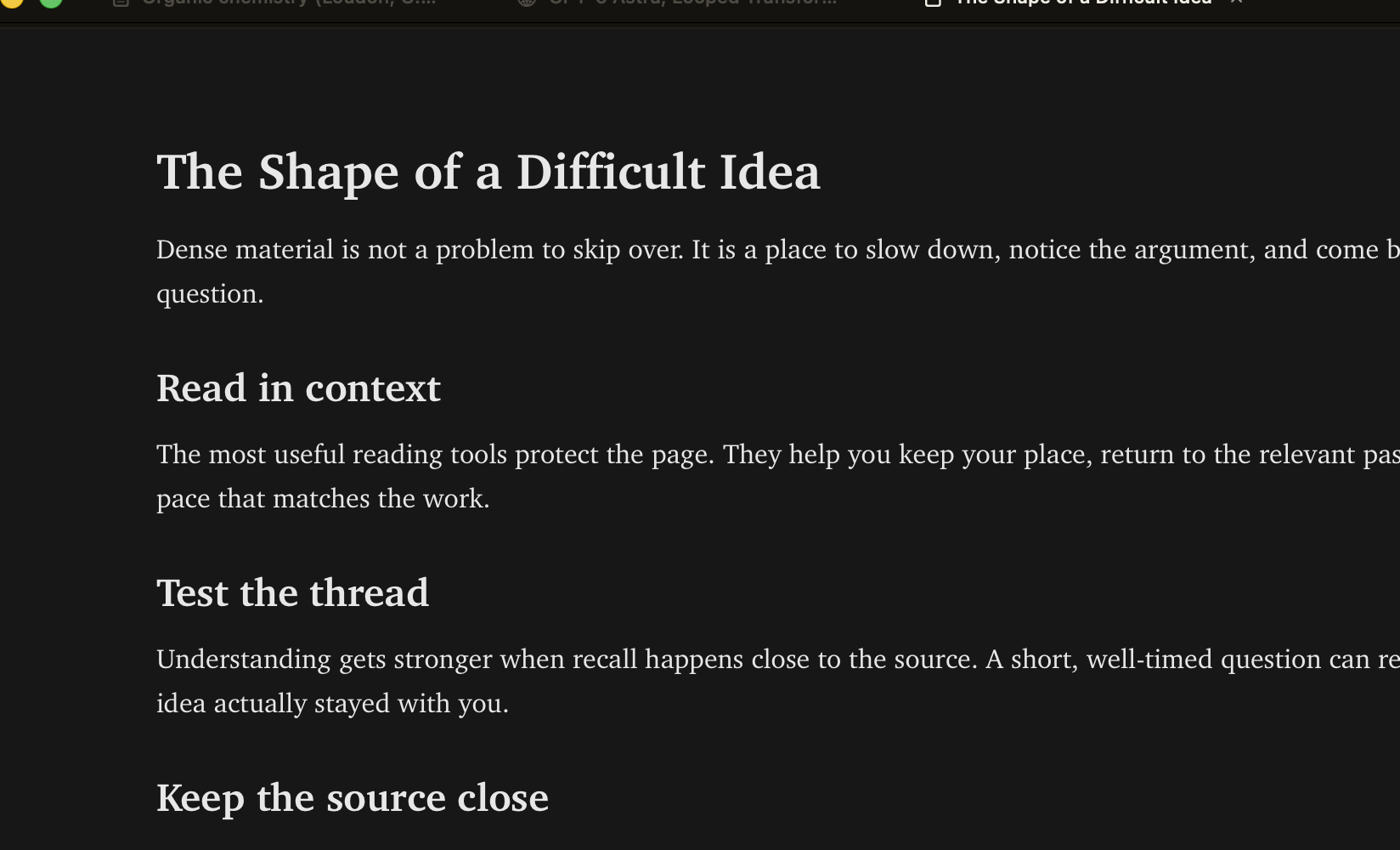
Most reading tools solve the wrong half of the problem. They are very good at getting you away from a difficult document — a summary, an outline, a chat transcript that stands in for the thing you were supposed to read. That is useful exactly once, for orientation, and then it quietly becomes a way of not reading.
Pageflow is built on the opposite bet. The document is the point. Intelligence should appear at the passage that confused you, do something specific, and get out of the way. Everything below is an expression of that one idea.
Stay with the difficult page.
The 0.2 public beta is free, runs on Apple silicon Macs with macOS 15 or later, and works on local PDFs, EPUBs, HTML pages, Markdown files, CSVs, code files, and article URLs.
1. Intelligent reading
“Intelligent reading” in Pageflow means a small set of things that stay attached to the source, rather than one big chat box that floats free of it.
Grounded answers that carry a page number
Ask a question about what you are reading and Pageflow searches the open document, answers from the retrieved passage, and keeps the page reference live — selecting it takes you back to the page the claim came from. On supported Macs the small questions can run on-device through Apple Intelligence; harder synthesis can be sent to a cloud provider you configure yourself with your own key. Which one ran is always visible.
Passage threads, not a chat log
This is the deliberate design choice in Pageflow. There is no general chat tab that accumulates a transcript detached from the text. Select a passage, press Cmd+Shift+T, and the conversation is anchored to that passage — it opens as a card next to the text, jumps back to its anchor with Cmd+J, and resolves with Cmd+D when the confusion is gone. Your questions end up organized the way the document is organized, because they are pinned to it.
Question chips
Press q and Pageflow surfaces the questions the current passage raises. Tapping one opens it as a passage thread. It is a way of being asked something at the moment you are most able to notice you cannot answer it.
Document X-Ray
:xray indexes the characters, places, and named entities in a long document so you can see where each one actually appears — useful when a paper introduces a term on page 12 and relies on it on page 130. :xray diane jumps straight to one entity's occurrences.
Live Mode
New work in this build. :live records or imports audio — a lecture, a meeting, a talk — and transcribes it on-device with a streaming model. The transcript becomes a timestamped, click-to-seek timeline you can replay. While it runs, Pageflow matches what is being said against the documents you have open and drafts source-bound notes: each draft is tied to a specific page and snippet, and nothing is added to your document until you choose to add it. Sessions survive a crash and can be reopened later.
2. Going deep
Reading something once and feeling that it made sense is not the same as knowing it. Pageflow has a deliberate second loop for the material you actually need to retain.
Quizzes from what you just read
:quiz turns the current page — or a page range, a saved artifact, or a Live session — into a comprehension check. :practice runs the same thing continuously. :fastquiz generates a local cloze quiz with no model call at all, and for code files Pageflow generates multiple-choice line-reconstruction questions instead of prose cloze. Every question keeps a link to its source excerpt, which you can reveal with h mid-question. Quizzes save and resume per document.
Flashcards and scheduled review
c toggles flashcards; :review starts a scheduled review session over cards that are due. The point is that the cards come from the reading you were already doing, so there is no second system to maintain.
Source-linked artifacts
:artifact builds a flow or comparison from your recent reading, with every node still pointing back at the page it came from, and :artifacts browses the ones you have saved. You can quiz yourself against an artifact the same way you quiz a page range.
Progress you can actually read
Pageflow tracks dwell time, revisits, and completion per page, and shows them as a heatmap. It is less a productivity score than a map of where the document was genuinely hard — the pages you kept returning to are usually the ones worth a second pass.
3. Pacing: read, listen, or both
Narration
v opens the voice panel for the current selection or page; Cmd+Shift+S speaks the selected text, an OCR'd region, or the whole page immediately. Narration is generated on your Mac by default — no per-minute bill, no upload — and audio is cached per page so re-listening is instant. Cloud voices remain an option if you want them.
Speed reader and auto-scroll
s or :speedreader opens an ORP speed reader for previews and review passes. :autoscroll 1.2 scrolls at a set number of pages per minute, adjustable with j and k while it runs. The interesting one is Cmd+Shift+Option+S: a voice-synced speed reader where the narration drives the word highlighting, so listening and reading are the same act rather than two competing ones.
4. Working with the document
The unglamorous half, and the reason the app is usable for real work.
- Regions.
Cmd+Shift+Rselects a visual region of a PDF — a figure, an equation, a table. From there: copy it as an image (Cmd+C), OCR it to text (Cmd+Shift+O), attach it to a question (Cmd+A), speak it (Cmd+S), speed-read it (Cmd+R), or mark it as an annotation (Cmd+M). - Notes and comments.
:notedrops a note on a selected region or at the viewport center;:commentanchors a comment to the current page;:searchcommentssearches them and:exportcommentscopies them all out as Markdown. - Editing.
:editedits the Markdown or CSV file you are reading in place,:previewpreviews it,:savewrites it back — and also saves filled PDF form fields. - Export.
:copymarkdown 93-135copies a page range as Markdown;:sliceexports a PDF slice of selected pages. Nothing you make in Pageflow is trapped in Pageflow. - Tabs and workspaces. Multi-tab reading with session restore,
Cmd+Option+Rto rename a tab,xto close one,:workspace saveto pull a document into a workspace folder, and:recent 1to reopen by index. - Layout presets.
wis Read (fit width),eis Read + Notes (leaves room for the comment rail),ris Research (whole page in view). - System integration. Pageflow registers as a handler for PDF, Markdown, and EPUB, and answers
pageflow://links that deep-link a file and page from another app.
5. The full keyboard reference
Pageflow is a modal, keyboard-first app in the vim tradition: no modifier for the common moves, : for everything else. Press ? in the app for this same list.
Navigation
View
Listening and pacing
Understanding and recall
Regions and capture
6. The command bar
Press : and type. A bare number jumps to that page; everything else is a verb. The list, more or less complete:
Documents
:open https://…)Reading and audio
Understanding and recall
:xray diane)App
Getting it
Download the 0.2.0 beta, or read the first-launch steps first. The build is ad-hoc signed rather than notarized with an Apple Developer ID, which means the first launch needs a right-click → Open instead of a double-click. It is free, it does not phone home, and it does not ask for an account.
No API key ships with it. Reading, progress, local narration, local transcription, OCR, exports, and the fast local quizzes all work with no key at all. Grounded answers against a cloud model, cloud voices, and LLM-generated quizzes use a provider you configure in Settings with a key from your own account.
If something breaks — and in a beta, something will — the issue tracker is the fastest way to reach me. Document-compatibility problems are the most useful reports: a PDF that extracts badly is a bug I can usually fix.